Disks and filesystems
Last edited
Paritions
Partitions are divisions of a disk, that to use space just look disks (regular block devices).
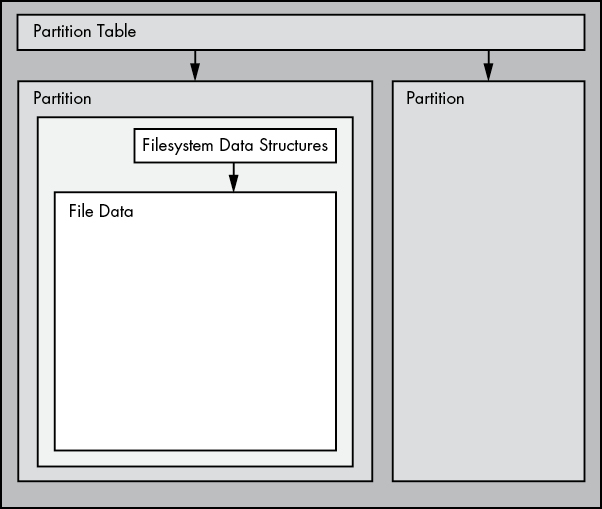
- Denoted with a number after the whole block device (e.g.,
sda1,sda2). - Partitions are defined on a small area of the disk called a partition table
The next layer up from the partition is the filesystem.
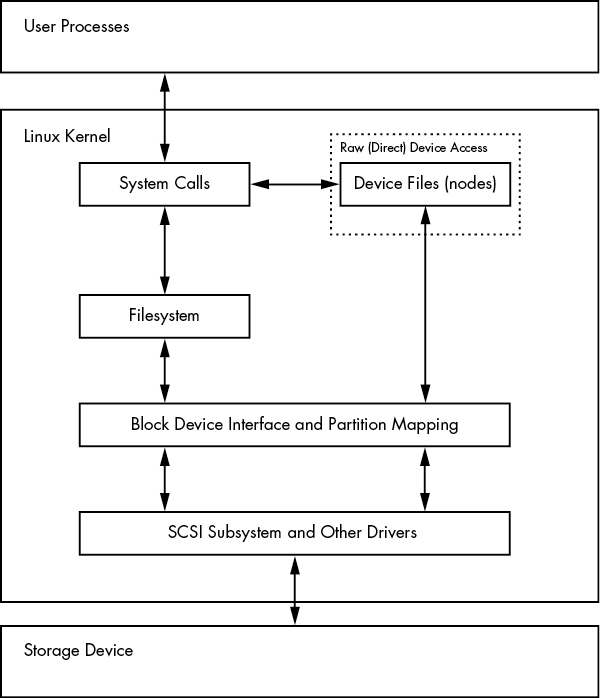
Linux storage stack diagram, from user process to actually reaching the hardware
Viewing Partitions
Important
There’s nothing special about a partition table, it’s just a bunch of data that says how the blocks on the disk are divided. The tools we use like
partedandfdiskare just reading/writing to and from this table on the disk and formatting the results.
sudo parted -l
sudo fdisk -l
Modifying Parition Tables
3 tools to modify parition tables: parted, gparted and fdisk
parted- live, interactive - as you issue commands the disks are changedfidsk- lets you draft the changes and only applies when you exist fdisk.
Creating a partition table
fdisk /dev/sda
p # print the current parition table
d # delete a parition
n # new parition (defaults are typically good)

g # gpt label, change the partition table to GPT instead of MBR, it will wipe all data
Filesystem
This is what ls and cd read from
The last layer between the kernel and userspace for disks is the filesystem.
The filestem is a database that structures a flat block device into a hierarchy of files for users.
VFS - Virtual File System
VFS layer is the final part of the fs implementation.
Just like SCSI standardizes the interface between different device types, VFS ensures all filesystem implementation have a standard interface so user-space applications access files and dirs in the same manner.
mkfs # frontend for a few other programs (mkfs.fs)Mounting a fs
Mounting: attaching a filesystem to a directory (mount point) in a filesystem
To mount a fs you must know:
- the filesystems device, location or identifer (
/dev/sda,//smb/share,UUID=123XXX) - the mount point, where in the current system directory the fs will be attached. (
/media/cdrom)
Commands
mount

# ... [snip]
/dev/sda2 on /media/mat type ext4 (rw,relatime)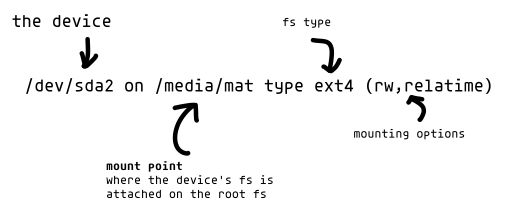
# View
mount
fndmnt # tree view
findmnt -l # list
Tip
Many distributions use the
UUIDas a mount point when you insert removable media, udevd daemon handles this when the device is connected.
Disk Buffering/Caching/fs
Write buffering
This buffering is why you “eject” before disconnecting a block storage device
The kernel usually doesn’t immediately write changes to filesystems when processes request it stores those changes in RAM until the kernel determines a good time to actually write them to the disk.
When you unmount a filesystem with umount, the kernel automatically synchronizes with the disk, writing the changes in its buffer to the disk.
You can force this with sync, which will flush all mounted filesystems.
Read caching
The kernel also caches blocks to RAM as they’re read from disk.
If one or more processes repeatedly access a file, the kernel doesn’t have to go to the disk again and again—it can simply read from the cache and save time and resources.
Viewing both
When can check out how memory is being used in /proc/meminfo and see which is disk related.
grep -E '^(Cached|Shmem|Dirty|Writeback):' /proc/meminfo
Cached:          4054628 kB   # page cache: file data in RAM (read cache + pending writes)
Dirty:               124 kB   # modified in RAM, not yet written to disk (write buffer)
Writeback:             0 kB   # being written to disk right now
Filesystem Mount Options
Options fall into two rough categories: general and filesystem-specific.
To activate a filesystem option, use the -o switch followed by the option:
mount -o uuid=1000 # treat all files as if uuid 1000 is the owner
mount -o ro # read-only mode
mount -o rw # read-write mode
mount -o remount # remount so you can update the options of the mount, typically to change a mount from ro to rw
fstab - filesystem table
fstab, similar naming scheme to crontab, where fs = filesystem, tab = table.
systemd & init run mount on each entry in fstab at startup time. 1
/etc/fstab
dump: legacy, always 0fsck: root fs always be1, everything else2, swap0, it checks and repairs the filesystem at boot
cat /etc/fstab
# <file system>     <mount point> <type> <options>         <dump>  <pass>
    UUID=70ccd6e7-....  /            ext4  errors=remount-ro 0       1
Swap
Using a file for swap space
Why would you want to do this? If you need swap space and cant parition a existing disk (the normal way).
This is perfectly acceptable way to add swap storage, the result is the same as a dedicated partition.
If you want this to persist you’ll have to add it to /etc/fstab
touch /var/silly_swap
sudo chmod 600 /var/silly_swap
dd if=/dev/zero of=/var/silly_swap bs=1M count=200
sudo mkswap silly_swap
sudo swapon silly_swap

# Results
cat /proc/swaps
# Filename           Type		     Size		Used		Priority
# /dev/sda3          partition	     12898300	16		    -2
# /var/silly_swap    file		     204796		0		    -3
LVM
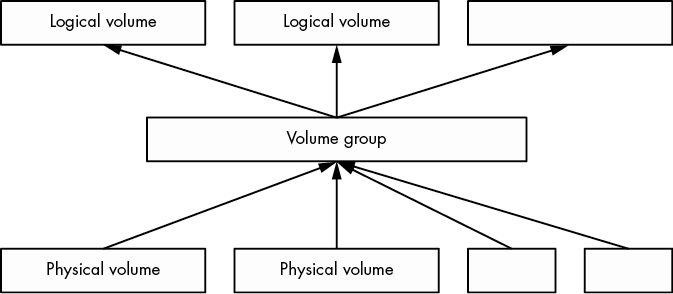
vg
vgs # vg summary
# x13-vg   1   2   0 wz--n- <475.03g    0
vgdisplay # more detailed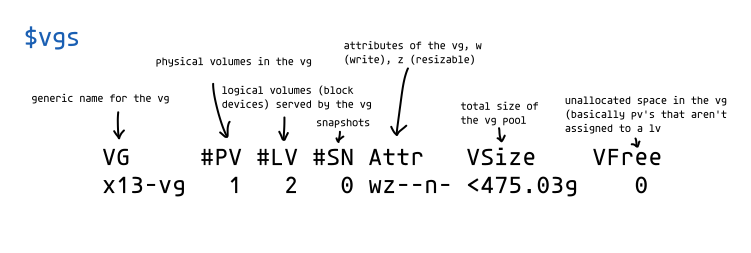
lv
lvs
# LV     VG     Attr       LSize
# root   x13-vg -wi-ao---- 459.35g
# swap_1 x13-vg -wi-ao---- <15.68g

lvsdisplay # more details
Using Logical Volume Devices
device files
Where are the device files for these?
/dev/dm-*- the actual device files, naming is unpredictable (thats why we have symlinks)/dev/<vg>/<lv>LVM also creates symbolic links to the devices that have stable names based on the volume group and logical volume names./dev/mapper/<vg--lv>- another way to find all lvm mapped drives. the format is specific so it’s easy to be parsed. 2
creating a pv/vg/lv full example
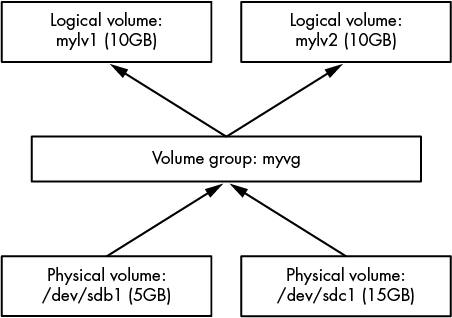
# Most of the commands must be run as root

fdisk /dev/sdc # optionally creating a single partition for the raw disks
fdisk /dev/sdd

# Creating a vg
vgcreate myvg /dev/sdc1 # because a vg must have at least one
vgextend myvg /dev/sdd1 # add our other partition
vgs

# Creating the lvs
lvcreate --size 10g myvg lv1
lvcreate -l 100%FREE --name lv2 myvg # I had to fill the remaining room it wasn't quite 10g

# Filesystem
mkfs -t ext4 /dev/myvg/lv1
mount /dev/mgvg/lv1 /mnt
df /mnt
# Done one!